Review your cards every day
Start a session, show the answer, rate how well you knew it, and use the keys, swipes and menu. Plus undo, the end screen and a daily reminder.
A review session shows the cards that are due today, one at a time. Answers are saved on your device first and sync later, so you can review offline.
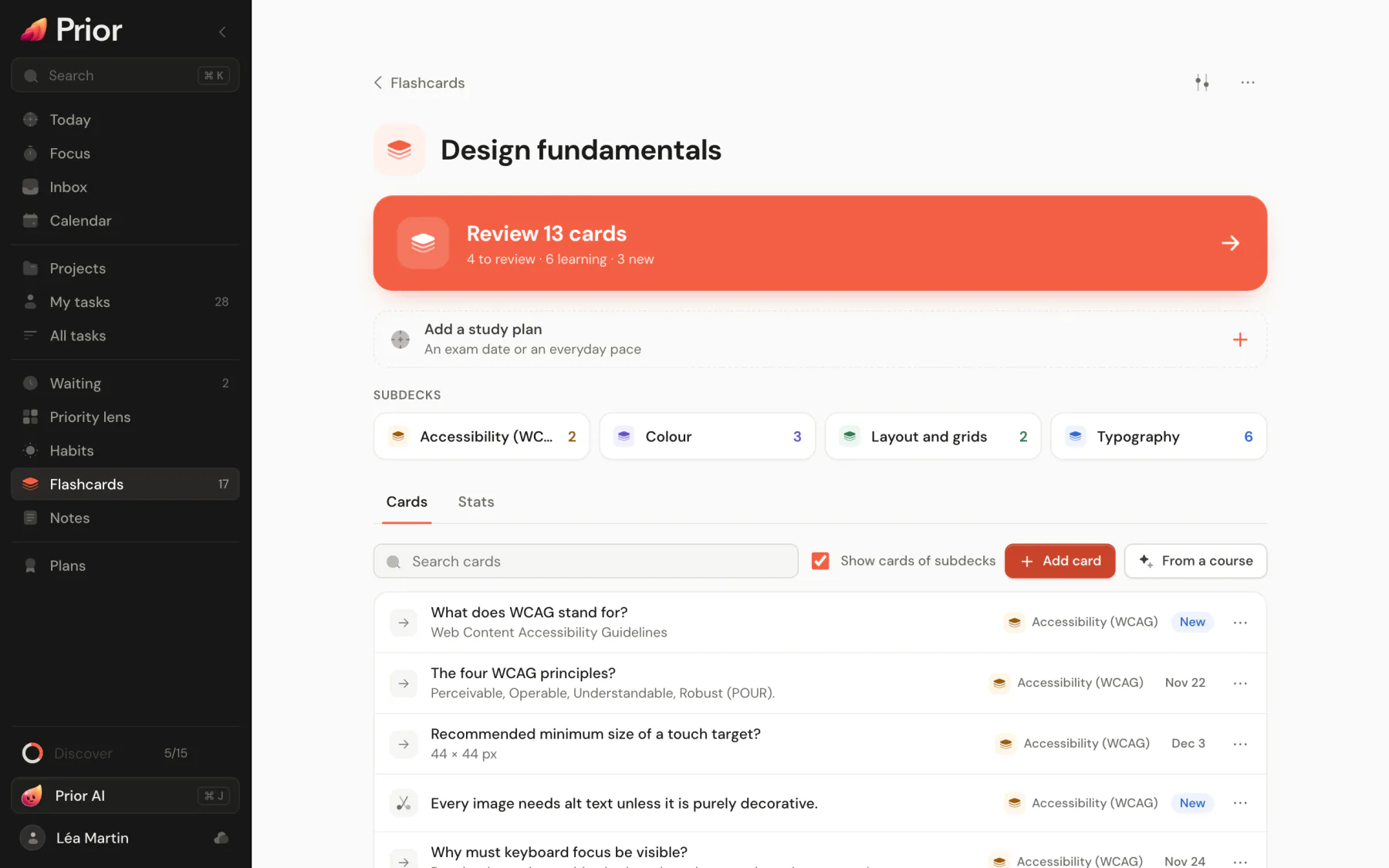
Start a session
- On the Flashcards page, choose Review N cards to study every deck.
- Open a deck and choose its review button to study that deck and its subdecks only.
- On the Today page, choose the N cards to review line. The command palette also has Review flashcards.
A session starts with the cards you are still learning, then the cards due for review, with new cards mixed in. How many you get depends on the deck's daily limits: 20 new cards and 200 reviews a day unless you change them. A day starts at 4:00 in the morning.
When nothing is due, the page says All done for today, or Next card at a time when a card you are learning is coming back within the day. Study ahead lets you review early: see Flag, bury, suspend and study off-schedule.
Answer a card
- Read the question and think of the answer.
- Choose Show answer, or press Space. On a type-the-answer card, type your answer and press Enter.
- Rate how well you knew it. Under each button, Prior shows how long until the card returns.
| Button | Key | Choose it when |
|---|---|---|
| Again | 1 | You did not remember. The card comes back soon. |
| Hard | 2 | You remembered, but it took effort |
| Good | 3 | You remembered |
| Easy | 4 | You knew it at once. The card waits longest. |
Be honest: the schedule is only as good as your answers. How Prior decides when a card comes back explains what each button does.
Keys and gestures
| Key | Action |
|---|---|
| Space or Enter | Show the answer. Once it is shown, answer Good. |
| 1 to 4 | Rate the card, after the answer is shown |
| Z or Cmd+Z | Undo your last answer |
| E | Edit the card |
| I | Show Card info: when it was added, its state, when it is due, and every answer |
| R | Read aloud the side you see, when your device can speak |
| - | Bury until tomorrow |
| @ | Suspend the card |
| Cmd+1 to 7 | Flag the card (Ctrl on Windows and Linux) |
| Esc | End the review |
On a touch screen, show the answer, then swipe right for Good or left for Again.
The More button (⋯) in the review bar holds the flag colors, Bury until tomorrow, Suspend, Edit card, Card info and Read aloud.
Undo a mistake
Undo (or Z) takes back your last answer. It works for the most recent answer only, for up to a minute, and only until you answer the next card. After that the answer has been sent to your account and stays. Burying or suspending a card shows an Undo button for a few seconds.
Ask for help on a card
After you show the answer, the sparkle button, Ask Prior AI, offers Explain, Mnemonic and Example. Each gives a short answer about the card. It is included in Pro, or available with your own OpenRouter key: see Bring your own key.
When the session ends
You see the cards you answered and the time spent, and your streak when you have studied on several days in a row. In Game mode you also see the XP earned. Choose Done to leave, or Review more to go on with 10 more new cards, or with the cards you are still learning today.
Get a daily reminder
On the Flashcards page, choose the gear (Flashcards settings), switch on Daily reminder and pick a Time. It is off by default and set per device. Prior sends one notification at that time, only if cards will be due, and tapping it starts the review. Prior asks for permission to send notifications the first time. On Android the reminder arrives even when the app is closed. On desktop and the web, Prior must be open.
Updated 5 November 2026