Review what the assistant proposes
Prior AI never saves anything on its own. Every task, note or change arrives as a card you can edit, apply or skip, with keys for each step.
When Prior AI wants to create or change something, it does not do it. It adds a Proposed changes panel under its answer, with one card for each item. Your data stays as it was until you apply a card.
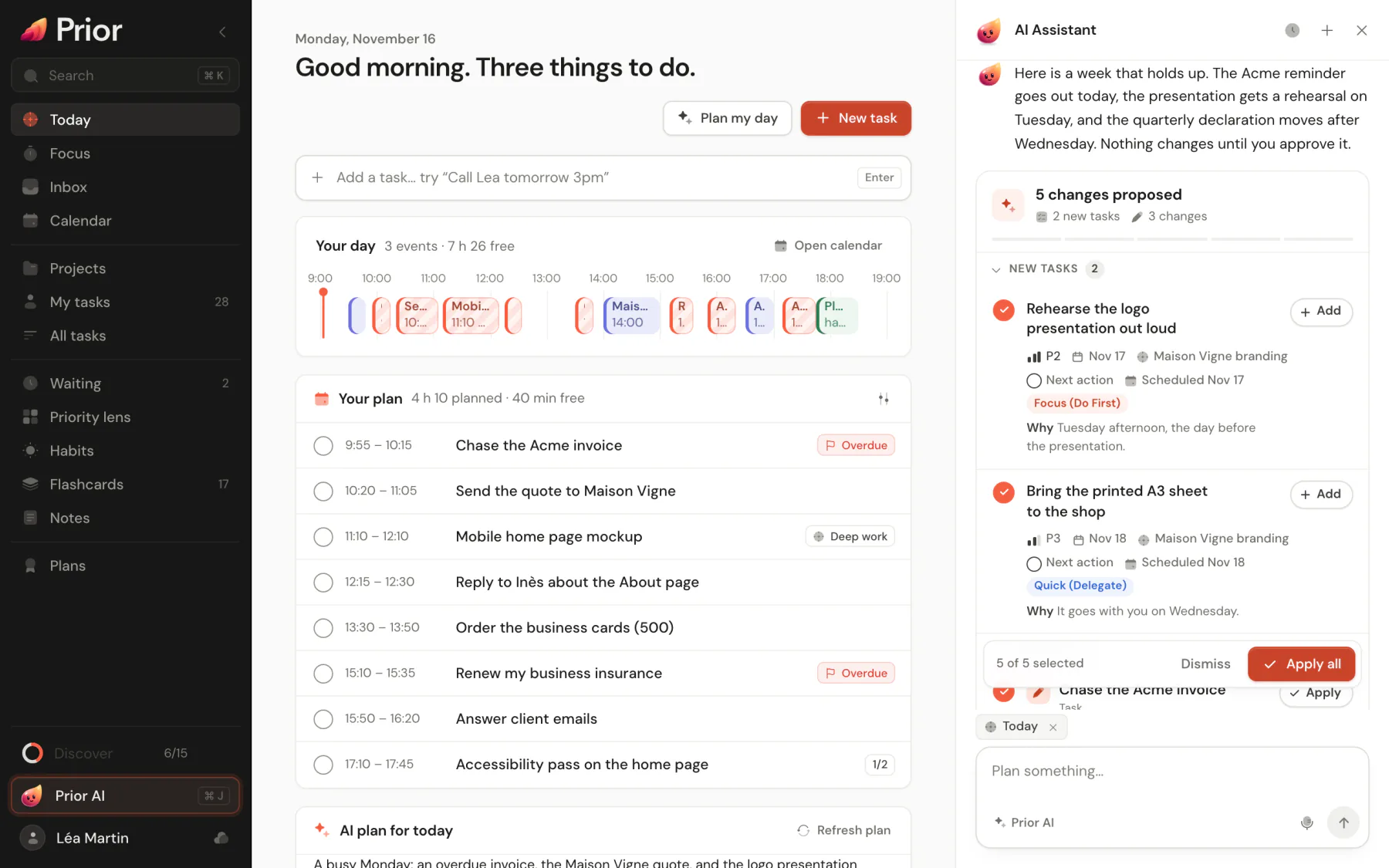
What a card shows
- New items (areas, projects, folders, tasks, habits, notes, flashcards) look like the real thing: a task shows its due date, priority, project, checklist and reminder.
- Changes to existing items show what moves. A date reads "3 days later", a title shows the old and new text, and a short Why line gives the reason.
- A note is drawn as it will read once saved, with its tables and charts.
- A budget change lists the added lines, the changed fields with their previous value, the removed lines and the estimated total.
- Flashcards come as one card per deck, with an editable deck name, the number of cards and a preview. Add these flashcards saves them, and Open deck takes you there.
Review a proposal
- Read the headline, for example "5 changes proposed", and the count by type under it.
- Untick an item with its checkbox if you do not want it.
- On a new task, click Edit to change its title, due date or priority before you save it. A flashcards card lets you rename its deck.
- Click Add (new item) or Apply (change) on one card, or Skip on a card you do not want.
- Click Apply all at the bottom to save every ticked item. The button reads Apply 3 when only some are ticked.
When everything is handled, the panel folds into a one-line summary such as "All applied" or "4 applied, 1 skipped". Open on an applied card takes you to the item.
Areas and projects are created first, so the tasks and notes that refer to them find them.
Keys
Click the panel, or move into it with Tab, then:
| Key | What it does |
|---|---|
| Enter | Apply everything ticked |
| Cmd+Enter or Ctrl+Enter | Apply everything ticked, from anywhere inside the panel |
| ↑ and ↓ | Move from card to card |
| Enter on a card | Apply that card and move to the next |
| Space on a card | Tick or untick it |
| Backspace or Delete on a card | Skip it and move to the next |
Dismiss and bring back
Dismiss hides the whole panel and shows an Undo toast. Show again brings the panel back. Undo on a skipped card brings it back. Dismissed and skipped choices are remembered on this device only.
Good to know
- Applying a card is a normal edit. It syncs to your other devices, and collaborators of a shared project see it like any change you make by hand.
- It never deletes. There is no card to remove a task, a project or a note.
- It follows your role. In a project where you can only view, it proposes no budget change, and a note you can only read gets no edit.
- A shared note can only be changed while it is open on your screen, and the edit reaches people reading it live. See Choose the page Prior AI reads.
- It remembers your answers. The assistant sees which proposals you accepted and does not suggest them again.
- If a card cannot be saved, the panel says "Prior could not apply these changes." Nothing is half-written; try again.
Updated 5 November 2026