Use the Today page
What Today shows, how Prior picks your current priorities, and what to do with overdue and waiting tasks, your agenda, habits and finished work.
Today is the page Prior opens on. It answers "what should I do now?" with a short list instead of every task you own.
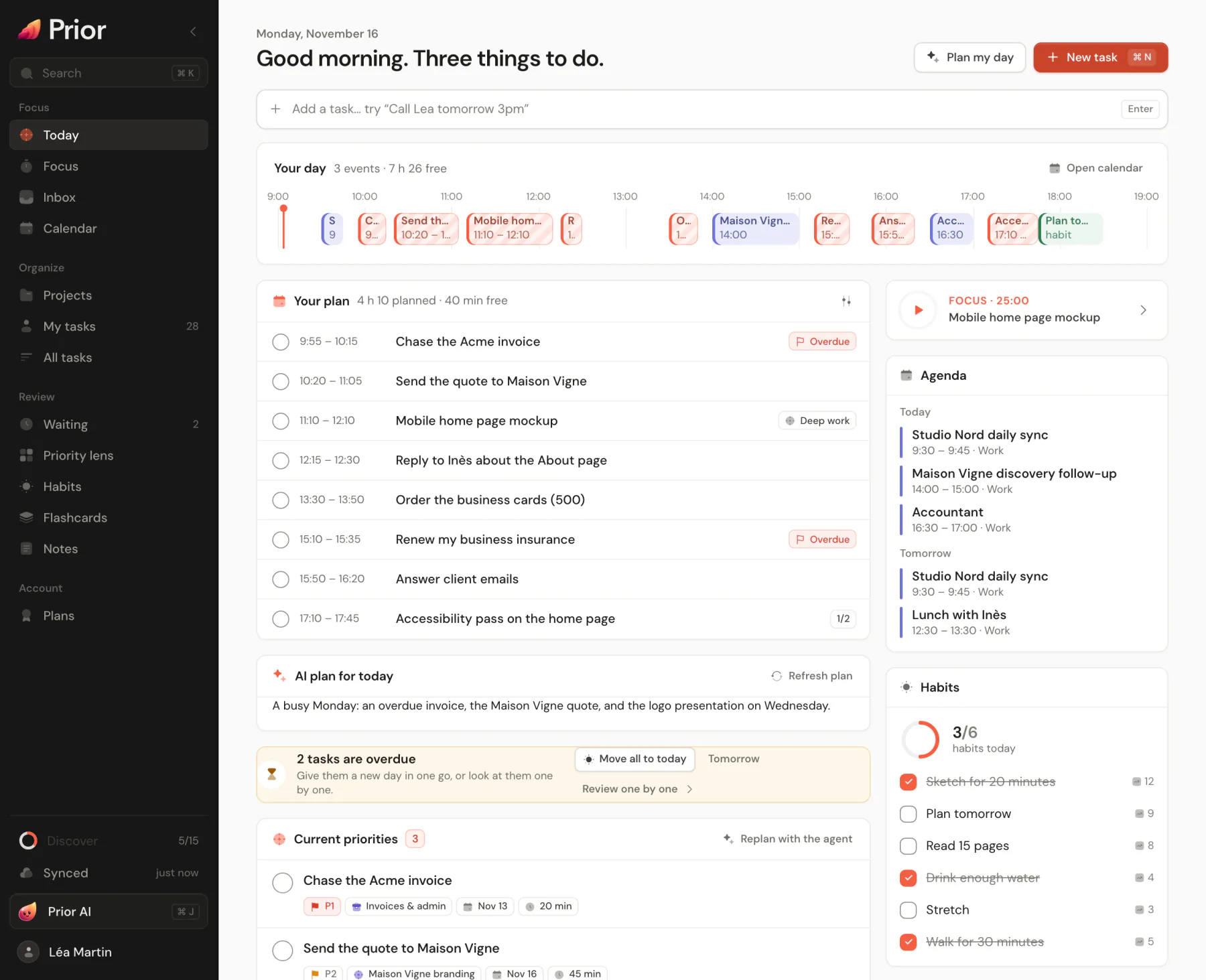
What is on the page
- Quick add at the top. Type a task and press Enter. See Quick capture.
- Your day, a timeline of today's events, habits with a time and planned task blocks.
- Current priorities: up to three tasks.
- Up next: the next five.
- Done today: a folded line with the tasks you finished. Open it to reopen one.
- A side column with the Focus timer, flashcards due, Agenda (today and tomorrow), Habits and Waiting.
Each card appears only when it has something to show. On a phone, a Next card shows your next event.
How Prior picks your priorities
Prior gives every open task a score, then shows the top three as Current priorities and the next five as Up next. Dates weigh the most: being overdue adds the most points, then being due today, then being picked for today with Pick for today. Priority, a due date within two days and a status of In progress or Todo add to the score. So a P1 due today ranks above a P4 that is overdue.
A few kinds of task never show here:
- Backlog and Waiting tasks.
- Inbox tasks, unless they are due within two days, picked for today or marked P1 or P2.
- In a shared project, tasks assigned to someone else.
The rest is in All tasks. See Priorities and Statuses and the Inbox.
Take action from Today
- Complete a task with its circle. A toast offers Undo.
- Move a task off today. Open the ••• menu on a priority and choose Not today. It moves to your next working day. On a task in Up next, Pick for today puts it on your list.
- Overdue tasks. With two or more, a strip offers Move all to today, Tomorrow or Review one by one. The review shows one task at a time with a key for each choice: T today, M tomorrow, W next week, N no date, X done, Backspace or Delete delete, and → skip.
- Nothing pressing? Today suggests up to five open tasks you could pick for today.
- Waiting. The oldest waiting item has a Follow up button: in 2 days, next week, a date, or a ready message to copy. See Statuses and the Inbox.
All the usual row actions work here. See Task actions.
More on Today
- Your plan lists today's blocks when you use automatic time blocking, a Pro feature.
- AI plan for today and the Plan my day and Replan with the agent buttons use Prior AI. The recommendations need Prior AI or your own key.
- Wrap up the day appears toward the end of your working day. See Evening wrap-up. A weekly review card appears from Friday afternoon. See Weekly review.
- A short suggestion may appear at the bottom, and after three or more days away a card summarizes what changed.
Good to know
- Today follows your local calendar day and updates at midnight.
- Dates are local: a task due today stays on Today until the end of the day, then counts as overdue.
- In your first week, Today shows the essentials only. See Your first day in Prior.
Updated 5 November 2026