Search and run commands with the palette
Press Cmd+K or Ctrl+K to find any task, habit, note or project, create a task from a sentence, jump to a page or run a command without leaving the keyboard.
The palette is one search box for everything in Prior. Use it to open a task, jump to a page, or run a command.
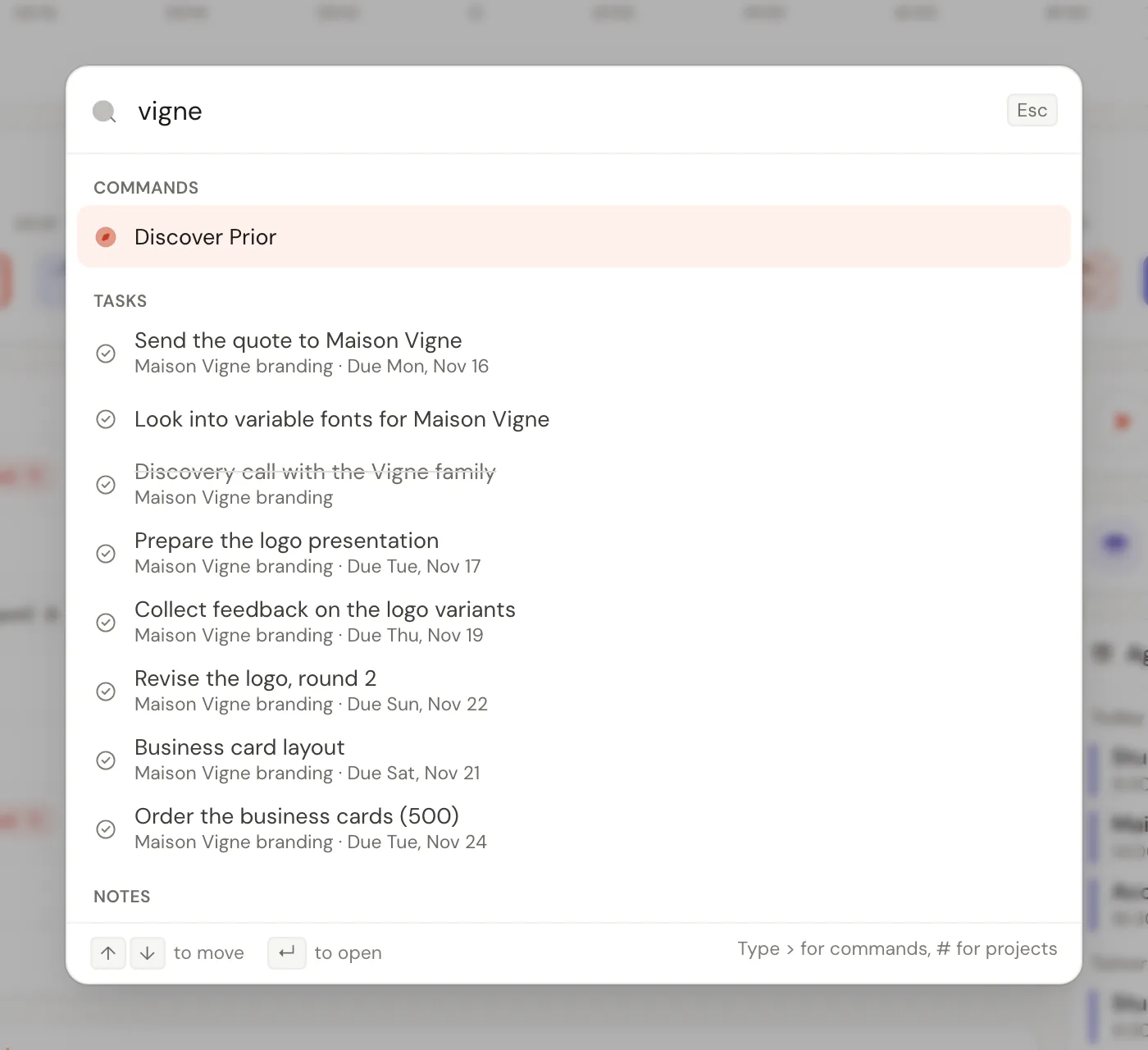
Open it
- Cmd K on a Mac, Ctrl K on Windows, Linux and Android keyboards. The same shortcut closes it.
- / when you are not typing in a field.
- The Search row at the top of the sidebar.
- On a phone, the search icon in the top bar.
On a Mac, Ctrl K is left alone, because it deletes to the end of the line in text fields. The palette works from inside text fields and notes too.
Search
Type a few letters. Prior searches:
- Tasks, by title, description and checklist items.
- Habits.
- Notes, by title and body.
- Projects.
- Commands.
Matching ignores accents and capital letters, and a few letters in order are enough to find a word. Results are grouped, with at most eight per group, and open tasks come before completed ones. With nothing typed, the palette shows your last eight picks under Recent.
Task rows show their project and due date ("Due Tue 4 Nov", "Overdue", or "Completed"). Commands with a shortcut show it on the right, so the palette teaches you the keys.
Use ↑ and ↓ to move, Ctrl Home and Ctrl End to jump to the first or last result, Enter to open or run, and Esc to close.
Narrow the search
| Type first | To see |
|---|---|
> | Commands only. Show all commands… fills it in for you. |
# | Projects only. Open a project… fills it in for you. |
Create from a sentence
When you type anything else, the last group is Create:
- Create task “…” reads your text like the task composer: dates, times, priority (
p1top4),#projectand repeat phrases, in seven languages. The words it understood show under the row. Choosing it saves the task at once, in the project you have open if there is one, and a toast offers Open. - Ask Prior AI “…” opens the assistant with your text ready to send.
When nothing else matches, these two are the only rows, so a search never ends in a dead end. See Quick capture.
Commands
Press > to list them all. The main ones:
- New task, New habit, New project, New area.
- Go to each page, for example Go to Today, and Settings: each settings tab.
- Start a focus session or Pause the focus session.
- Open Prior AI, Keyboard shortcuts, What's new in Prior and All versions of Prior.
- Help with this page, Help center and Contact support, which open the help center in your browser.
- Pin or unpin the project you have open to the sidebar.
- Wrap up your day, Weekly review and Prior Wrapped: this month.
- Review flashcards and New flashcard, when Flashcards is in your menu.
- Import from Todoist, Linear or Notion and Discover Prior.
- The theme (light, dark or system), Turn on the gamified mode or Switch to Calm mode, and Sign out.
On a new account, Go to lists every page, even one you hid from the menu. On an older account it lists only the pages in your menu. See Find your way around Prior.
Good to know
- The search runs on your device, over your own data.
- A command appears only when it applies: Pin needs an open project, and Review flashcards needs the space in your menu.
Updated 5 November 2026