Act on tasks without opening them
Use the task menu, the keyboard and multi-select to reschedule, prioritize, move, duplicate, complete or delete one task or many at once, with Undo every time.
You can do most things to a task without opening it: from a menu, from the keyboard, or on several tasks at once. There are no confirmation dialogs, because every action can be undone.
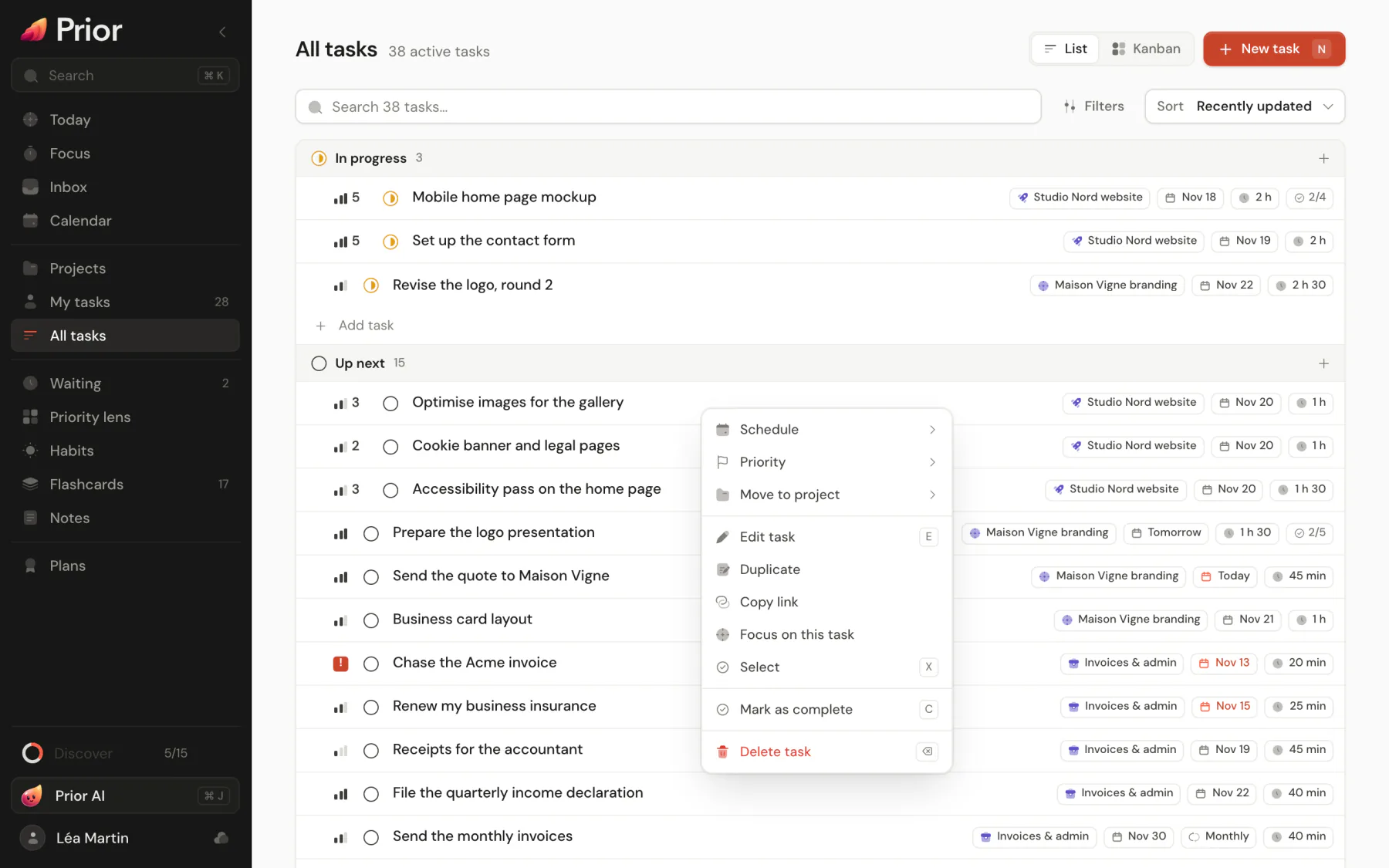
The task menu
Right-click a task, press and hold it, use the ••• button on its row, or swipe it to the left on a phone. The menu has:
- Schedule, called Reschedule on an overdue task: Today, Tomorrow, Next week (the coming Monday), Pick a date… and Remove date. A reminder keeps its distance from the due date.
- Priority: P1 to P4.
- Move to project, with a search box. No project takes the task out of its project. Projects you can only view and finished projects are not offered. Moving clears the task's assignee, parent, milestone and blockers.
- Move to quadrant, on the Priority lens. See The Eisenhower matrix.
- Not today, on Today's current priorities, and Pick for today, on Up next. See Use the Today page.
- Edit task, Duplicate (an open copy with the checklist unticked), Copy link, and in the desktop app Copy app link.
- Focus on this task, which picks it in the Focus timer and opens the Focus page.
- Select, on phones, to start selecting several tasks.
- Mark as complete or Mark as incomplete, and Delete task.
On a computer the menu shows the key for each action. On a phone it opens as a sheet from the bottom.
Swipe on a phone
On All tasks, My tasks and the Priority lens, swipe a task to the right to complete it, or to the left for the menu.
Select several tasks
On All tasks and My tasks:
- Tick the checkbox that appears when you hover a row.
- Cmd-click or Ctrl-click a row to toggle it, and Shift-click to select a range.
- Press X on a focused row, or use the select button in a group's header to take the whole group.
- On a phone, choose Select in the menu, then tap rows.
A bar appears with N selected and the buttons Complete, Date, Priority, Project and Delete, plus Clear selection. One action on the selection makes one Undo toast, like "3 tasks deleted". Esc clears the selection, and it ends when you leave the page.
From the keyboard
Move through a list with J and K, then press E to edit, Space to complete, 1 to 4 for the priority, T for today and Shift T for tomorrow. The full list is in Keyboard shortcuts. With several tasks selected, the keys act on all of them.
Good to know
- Every action shows a toast with Undo. See Undo and delete.
- Tasks of a project you can only view cannot be changed. A project shared with others needs a connection to change. See Offline use and sync.
- Completing a repeating task creates its next occurrence, and Undo removes it again. See Recurring tasks.
Updated 5 November 2026