View and edit a task
Open a task to change its title, description, status, priority, dates, project, repeat, reminder and checklist, from the side panel or the full edit sheet.
A task has a title, a description and a set of optional fields. You can change them in two places: a side panel for quick edits, and the full edit sheet for everything.
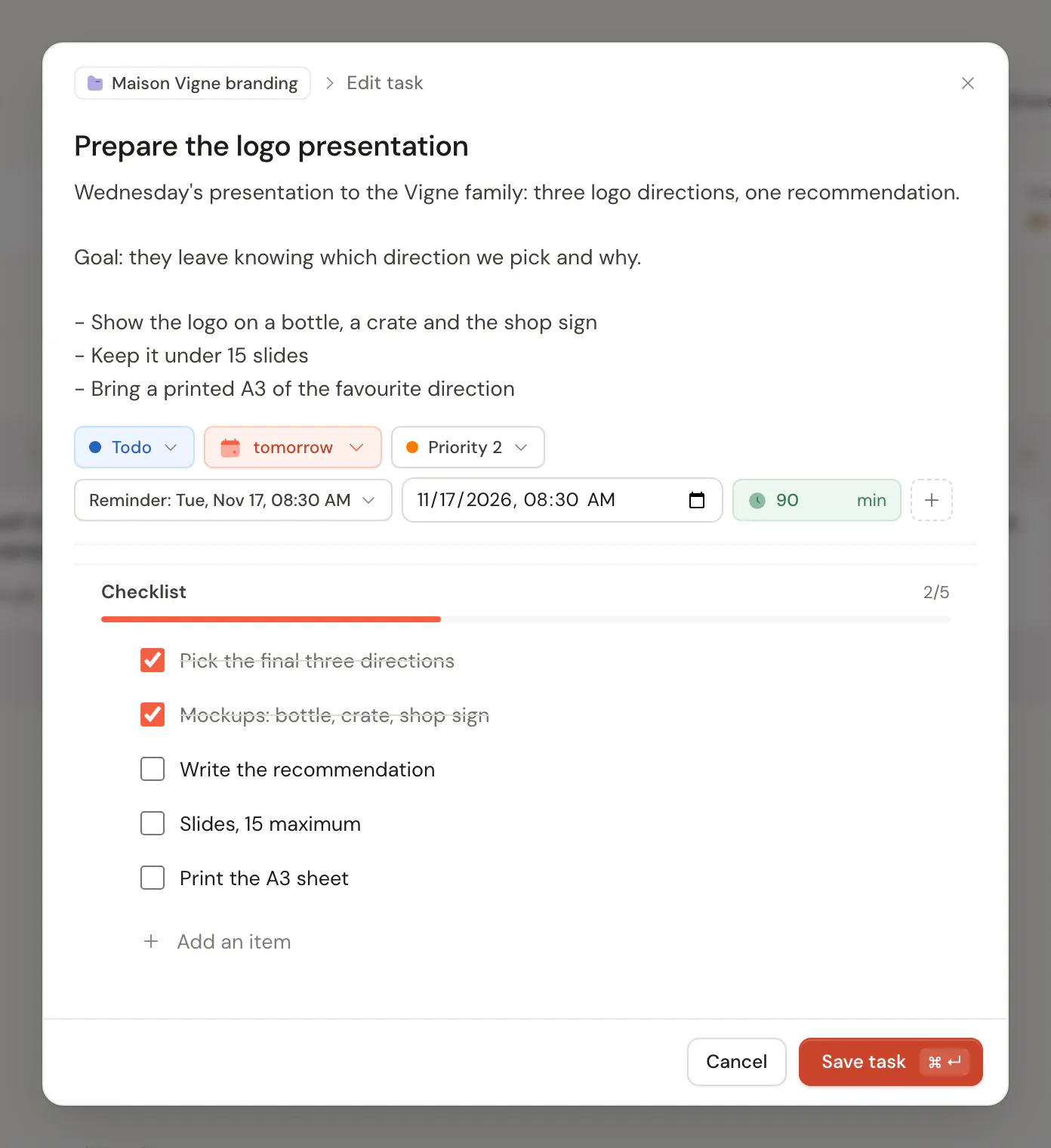
Open a task
- Click its title. On a wide window, All tasks and My tasks open the side panel beside the list. Everywhere else, and on a phone, the full sheet opens.
- Press ↵ on a row to open it, or E to go straight to the full sheet. Edit in the panel and Edit task in a row's menu open it too.
- Open a task link. Copy link in a task's menu gives you one.
Close the panel with its × or Esc. On a phone, swipe down on the sheet's handle to close it.
The side panel
The panel saves each change as you make it.
- Title. Click it to rename. Enter or leaving the field saves, and Esc cancels.
- Description. Saves after a short pause or when you leave the field.
- Status, Priority, Project and Due date. Pick a value from each menu. A due date can carry a time.
- Repeat and Reminder. See Recurring tasks and Reminders.
- Assignee, shown as read-only text. To assign a project member, use the full sheet or a board card.
- Matrix, read-only: the quadrant the task falls in, worked out from its priority and due date. See The Eisenhower matrix.
- Checklist and, in a shared project, comments.
- Activity: when the task was created and last updated.
The footer has Duplicate and Delete. See Undo and delete.
The full edit sheet
The sheet shows the fields that matter first and keeps the rest behind the + button, like the new task sheet. Choose Save task to save, or Cancel to leave. If you close it with unsaved changes, the first Esc warns you and a second one within three seconds closes it. Cmd ↵ or Ctrl ↵ saves.
| Field | What it does |
|---|---|
| Title and description | The text of the task. |
| Status | Where the task stands. The sheet calls the usual one Todo, and the lists call it Up next. See Statuses and the Inbox. |
| Priority | P1 to P4. See Priorities. |
| Due date | A day, with an optional time. See Due dates and times. |
| Reminder and Repeat | A notification and a repeat rule. |
| Duration | The estimated time in minutes, from 1 to 10,000. Automatic time blocking uses it to size blocks. See Time blocking. |
| Checklist | Up to 100 steps. See Checklists. |
| Project | The project the task belongs to. A task is in at most one. |
| Area | Shown for a task outside a project. A task in a project follows the project's area. |
| Assignee | In a shared project, the member responsible. See Assign tasks. |
| Responsible | Outside a shared project, the name of the person you wait on. A task with a name here shows on the Waiting page. |
| Follow up | A date to check back, used with the Waiting status. |
| Story points | The size of a task in a Scrum or Scrumban project, which replaces the priority there. See Story points. |
| Sub-tasks and dependencies | Parent task, blockers and milestone, for tasks in a project. See Sub-tasks and dependencies. |
A field appears once it holds a value, so a task shows what it has.
Good to know
- Moving a task to another project clears its assignee, parent, milestone and blockers, because they only make sense inside one project.
- In a shared project, a viewer can read the task and its comments but cannot edit the task or write a comment.
- Comments and @mentions live under the task in shared projects. See Comments and mentions.
- If you edit the same task on two devices before they sync, the last change to reach the server is kept. See Offline use and sync.
Updated 5 November 2026