Use statuses and the Inbox
Every task has a status from Inbox to Done. What each means, where new tasks land, how Today treats them, and how to triage the Inbox and follow up.
A status says where a task stands. It decides which group a task sits in on All tasks, which column it has on a board, and whether it shows on Today.
A task can move in any direction: the path above is the usual one, not a rule.
| Status | Means | On Today |
|---|---|---|
| Inbox | Captured, not sorted yet. | Only when it is overdue, due within two days, picked for today or P1 to P2. |
| Backlog | Not now. Kept for later. | Never. |
| Todo | Ready to do. The default for new tasks. | Yes. |
| In progress | You have started. | Yes, ranked a little higher. |
| Waiting | You depend on someone or something. | Never as a priority. It shows in the Waiting card. |
| Done | Finished. | In Done today. |
The name of the usual status changes with where you look. It is Todo in the status menu, Up next as a group on All tasks and Next action on a task's badge.
Change a status
- Use the Status field in the edit sheet or the side panel. For a task outside a software project, the sheet offers Todo, In progress, Waiting and Done, plus the status the task already has. The side panel offers all six.
- On the Kanban layout of All tasks, set Group by to Status and drag a card to another column.
- Create a task in a status with the Add task row at the end of each group.
- Complete a task with its circle to set it to Done.
All tasks lists the groups in this order: In progress, Up next, Inbox, Waiting, Backlog, then a folded Done row. See Task views.
The Inbox
The Inbox is the safe place for things you captured and have not sorted. These land there:
- Tasks added from the desktop quick-add window. See Quick capture.
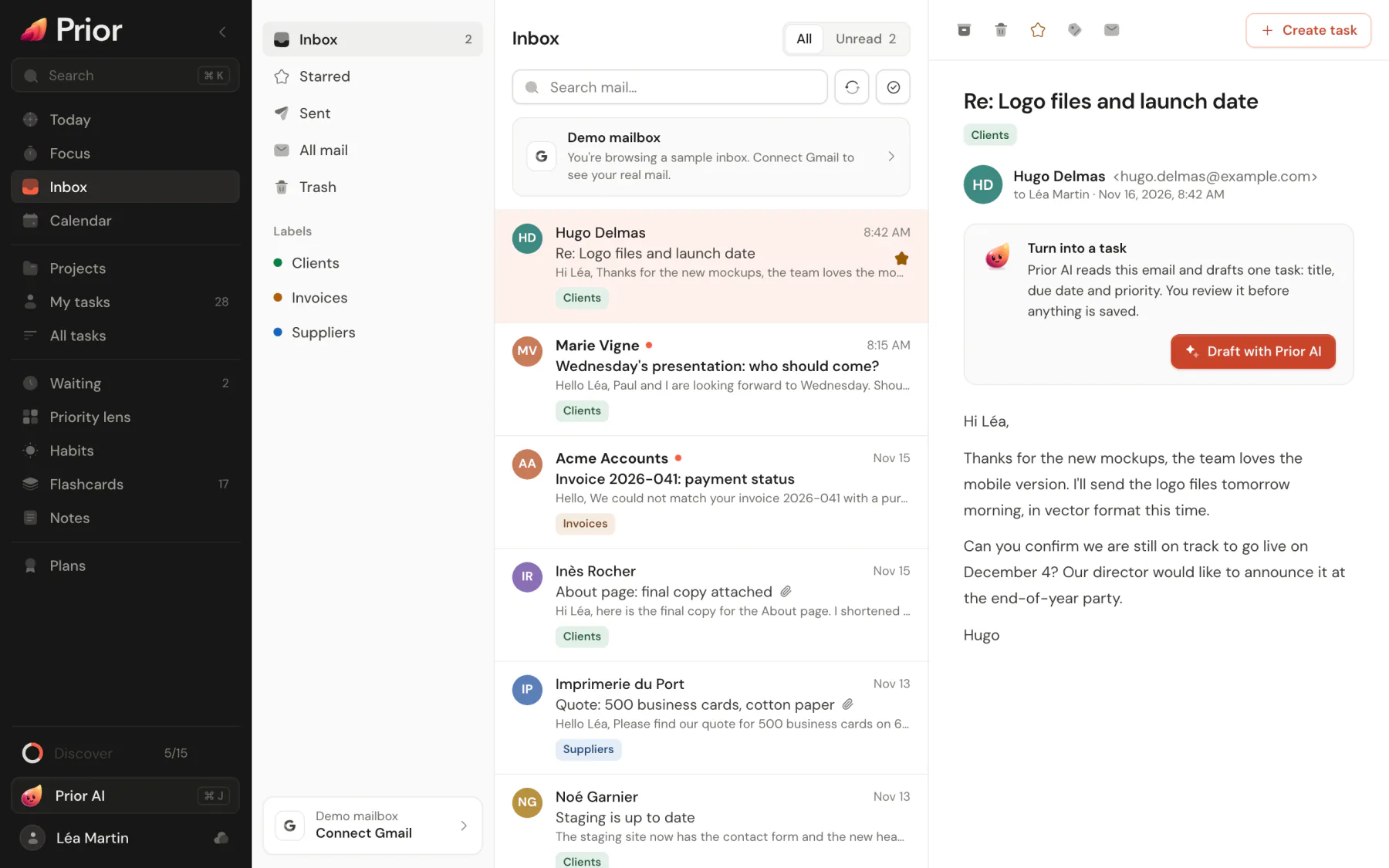
- Tasks made from an email with Add to task.
- Tasks created by assistants connected through MCP.
- Untriaged items from an import, like Linear's Triage, and older tasks that have no status.
Tasks you write in the new task sheet or a quick-add field start as Todo, and as Backlog in a software project.
To triage, open All tasks and work through the Inbox group. Give each task a date, a priority or a project and set it to Todo, move it to Backlog, or delete it. On Android, the Inbox widget lists what waits for triage.
Follow up on waiting tasks
Set a task to Waiting when it depends on someone. Put their name or email in Responsible and a date in Follow up.
The Waiting space lists every open task that is set to Waiting or has a Responsible name. It groups them by person and shows how long each has waited. For each task:
- Follow up moves the next nudge to 2 days from now, next week or a date, or copies a ready message such as "Hi Sam, any news on …?".
- Received completes the task.
- Write opens an email when the name is an address.
Follow-ups that are due come first. The oldest waiting task also appears on Today with a Follow up button.
Good to know
- Automatic time blocking plans Inbox tasks only when they have a date or P1 to P2, and Backlog tasks only when they have a date. See Time blocking.
Updated 5 November 2026