Write and keep notes in Prior
Notes sit next to your tasks and projects, as a personal library of folders and as live shared notes for your team. Here is where to start.
Notes are documents that live next to your tasks. Use them for meeting notes, project briefs, research and anything too long for a task description. Notes work on every plan.
Open your notes
Choose Notes in the menu, or press G then N. The command palette (Cmd+K or Ctrl+K) finds a note by its title.
If Notes is not in your menu, open Discover, find Keep your notes and choose the Menu button next to it, which adds it to your menu.
Write your first note
- Choose New note (the + at the top of the library), or press N. In the desktop app, Cmd+N or Ctrl+N also works.
- Type a title, then press Enter to move into the text.
- Write. Type / to insert a heading, a list, a table, a chart or a callout.
There is no Save button. Prior saves a moment after you stop typing, and again when you leave the note. An empty note offers templates to start from: see Start a note from a template.
What the screen holds
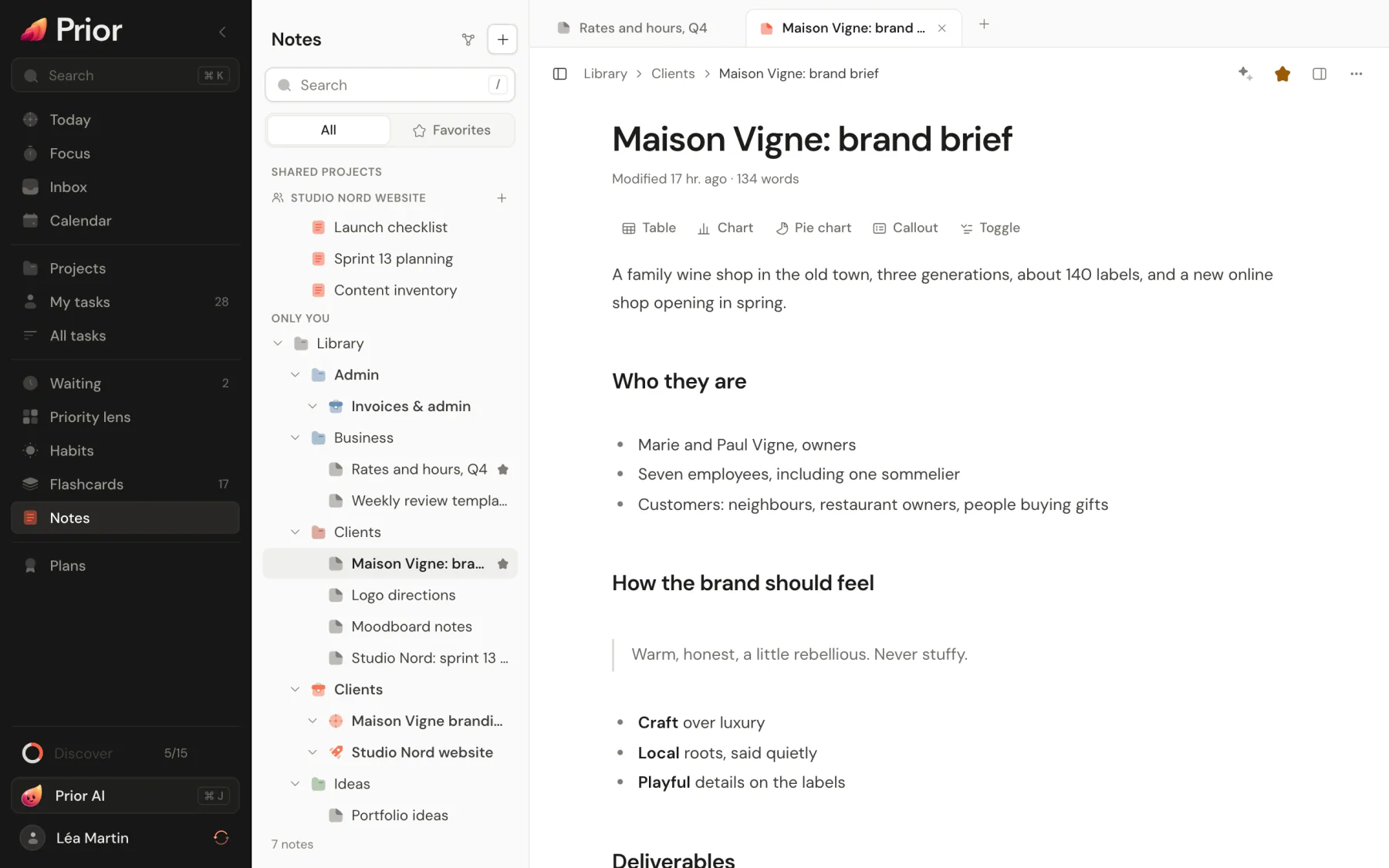
- The library on the left: your folders and notes, a search box and a Favorites filter. See Organize notes.
- Tabs above the note, so several notes stay open.
- The note itself, always ready to edit. You see it formatted; the Markdown shows only in the part you are typing in. See Write in the note editor.
- The inspector, opened from the toolbar: properties, the outline of headings, backlinks and a small graph of linked notes.
On a phone, the library and the note take turns. A back arrow returns to the list.
Two kinds of notes
| Kind | Who sees it | Where it lives |
|---|---|---|
| Personal note | Only you | Your Library, in folders. Each project also has a folder. |
| Shared note | Everyone in a shared project | The project's Notes tab. Editors write in it together, live. |
Personal notes can be linked to a project with project notes, and moved into the project's shared notes whenever you decide. See Write a shared note live.
What a note can hold
Headings, lists, checklists, quotes, code, tables with totals, charts, callouts and toggles, math, Mermaid diagrams, links between notes with [[Note title]], #tags, and images, video, audio and PDFs.
Good to know
- Plain Markdown underneath. A note is stored as Markdown text. Export Markdown, in the note's More actions menu, downloads it as a
.mdfile. - Your notes are with you offline. Personal notes are kept on your device first and sync with your account. Your notes, folders and attachments are part of your data export.
- Ask Prior AI about a note. The sparkle button in the toolbar opens the assistant on the note you are reading. See Page context.
- Deleting needs a confirmation. The note goes to the trash: Trash, under the library, lists what you deleted and brings it back with Restore.
Updated 5 November 2026