Read your Gmail in Prior
Connect Gmail to the Inbox page to read and sort your mail in Prior, and turn a message into a task without leaving it.
The Inbox page shows your Gmail: you read, star, label and archive your mail in Prior, and when a message means work, you turn it into a task. Until you connect an account, it shows a sample mailbox so you can try it.
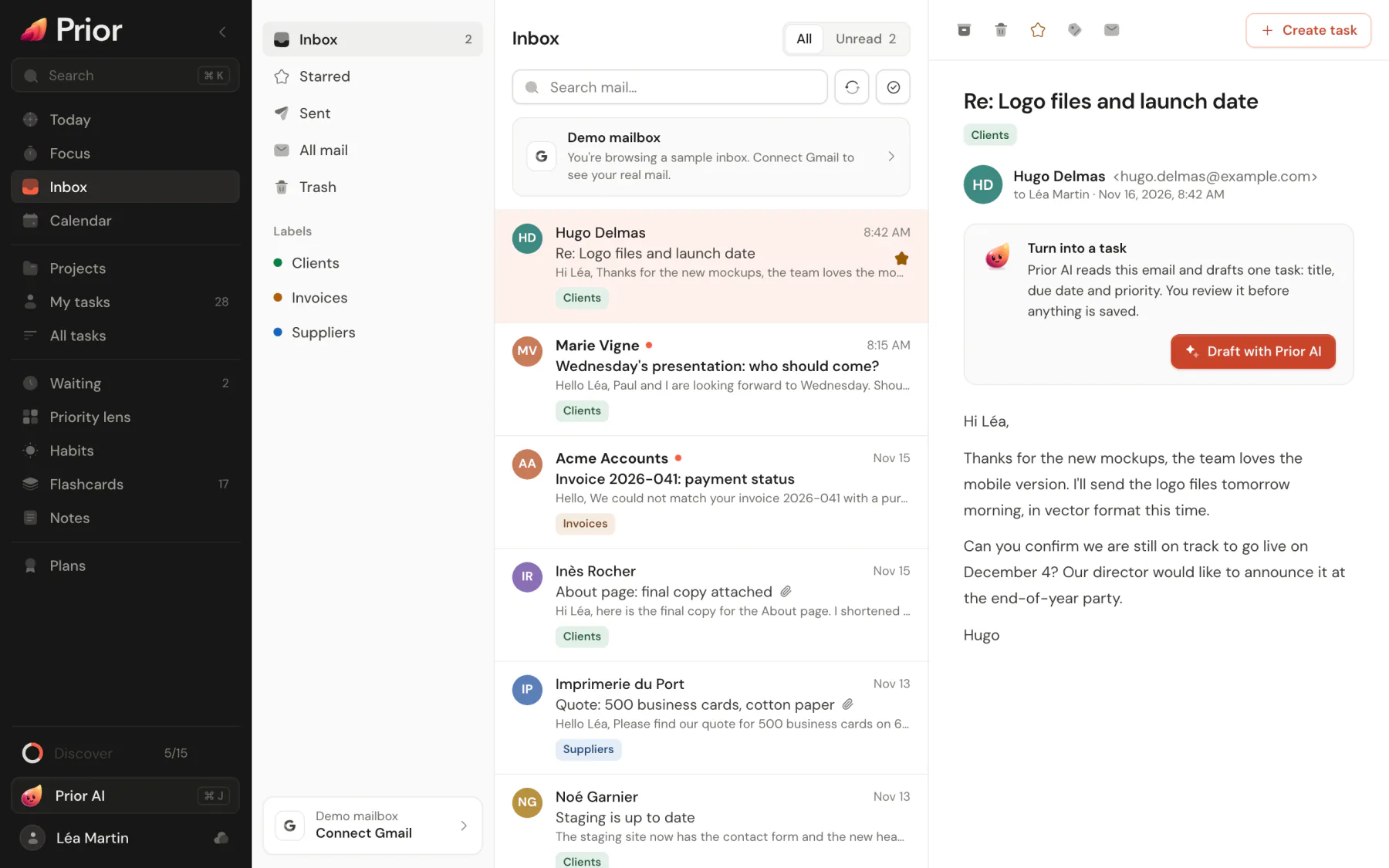
Connect Gmail
- Open Inbox in the sidebar.
- Click Connect Gmail, then Continue with Google.
- Pick your account and approve what Google asks: reading and changing your mail, and managing your labels.
Prior only gets the access you approve, and your Google password is never shared with it. To cut the connection, open the account menu of the Inbox and click Disconnect.
Sort your mail
- Folders: Inbox, Starred, Sent, All mail, Trash, and your Gmail labels under Labels.
- Search: the search box finds mail the way Gmail does.
- On a message: Archive, Delete, Add star, Mark as read or Mark as unread, and Tags for your labels. Open in Gmail opens the original.
- Several at once: Select messages, then act on them all in one go.
What you do here happens in your Gmail too, on every device.
Turn a message into a task
Right-click a message, or open its menu, then choose:
- Add to task to create a task from it yourself.
- Add to task with AI to let Prior AI draft the task from the message. This needs a plan with Prior AI or your own key.
Good to know
- Your mail stays in Gmail: Prior reads it through Google when you open the page.
- Only Gmail can be connected.
- Your mail is sent to an AI provider only when you use Add to task with AI. See AI and privacy.
Updated 5 November 2026