Ask Prior AI to plan and organize your work
Open the assistant with Cmd+J or Ctrl+J, ask it to plan your day, sort tasks or write a note, and review every change before it is saved.
Prior AI is the assistant inside the app. It knows your tasks, habits, projects, notes and the next seven days of your calendar, answers in your language, and turns what you ask into proposals. Nothing changes until you confirm each proposal: see Review what the assistant proposes.
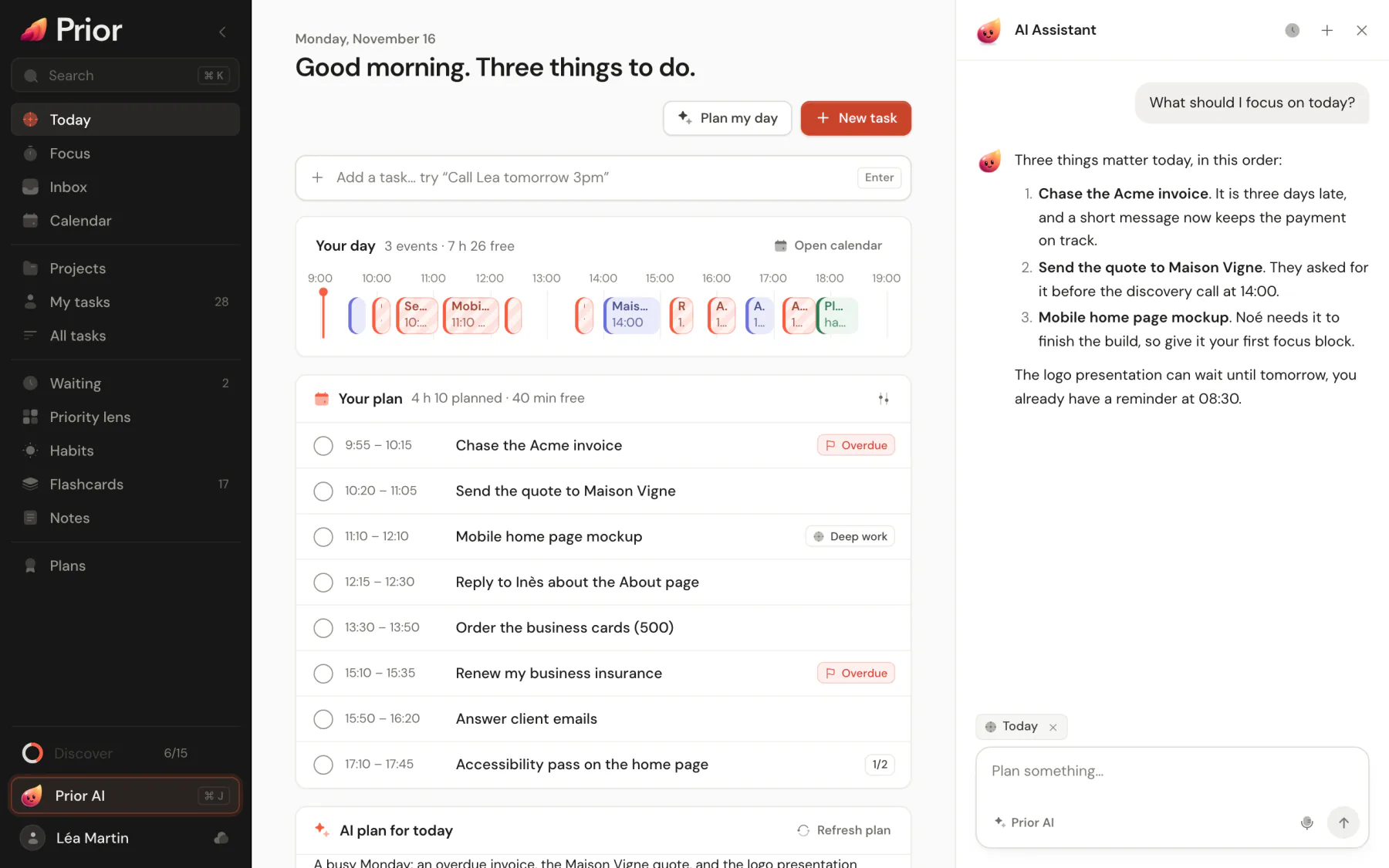
Open it
- Click Prior AI in the sidebar.
- Press Cmd+J on a Mac, or Ctrl+J on Windows, Linux and the web. The same keys close it.
- Open the command palette, type a question and choose Ask Prior AI. The question lands in the composer.
- On a phone, go to More → Open Prior AI.
On a screen wider than 1,280 px the assistant sits in a column beside your page. On a narrower one it floats over the page.
What to ask
Write the way you talk, typos included. The welcome screen suggests five starting points:
- Help me set up all my work
- Organize into Areas and Projects
- What should I do today?
- Which tasks should I delegate?
- Review my Inbox
Other requests that work well: "Break the website launch into milestones and tasks", "Move everything for Friday to Monday", "Turn these notes into a checklist", "Write a weekly summary of what I finished", "Make flashcards from this note".
What it can do
| It can | Where the result goes |
|---|---|
| Create areas, projects, tasks, habits, notes and note folders | New cards in the review panel |
| Change existing tasks, projects, habits, notes and areas | Change cards that show the old and new values |
| Write flashcards into a deck | A card with a preview of the cards |
| Add, change or remove lines of a project budget | A card with the added, changed and removed lines |
| Read your tasks, habits, notes, projects, the last 14 days of completed tasks and the next 7 days of events | The answer itself |
A task it proposes can carry a due date, priority, reminder, repeat rule, checklist, sub-tasks, an assignee and a milestone.
It never deletes anything, never sends a message, and does not change your settings. It reads your calendar but does not add events to it.
Conversations
- Chat history lists your earlier conversations, and New conversation starts a fresh one. A conversation is named from its first message.
- Conversations are saved to your account when you are signed in, so they follow you across devices.
- The assistant reads your last 8 messages word for word and a short summary of anything older.
- To dictate instead of typing, click Start voice input. A recording lasts up to two minutes, and you can edit the text before you send it. Dictation needs Prior AI or your own OpenAI key.
Good to know
- It sees a slice of your workspace, not all of it: up to 60 open tasks and 30 each of areas, projects, habits, folders and notes. See Limits of Prior AI.
- It can be wrong. Read each card before you apply it, especially dates and amounts.
- A page can be its context. The chip above the composer says what it reads: see Choose the page Prior AI reads.
- A task goes into a project only if you named it or the project is the page you have open.
Updated 5 November 2026